
In the world of Artificial intelligence(AI), OpenAI’s ChatGPT has become a big deal since it launched last fall. It’s not just a tech topic; it’s got the attention of big companies like Twitter, Google, Amazon, Microsoft, and Meta.
With a whopping 100 million users by January 2023, ChatGPT quickly became the fastest-growing ‘app’ ever, beating even TikTok until Threads took over in July.
Getting Started with CHATGPT
Step 1
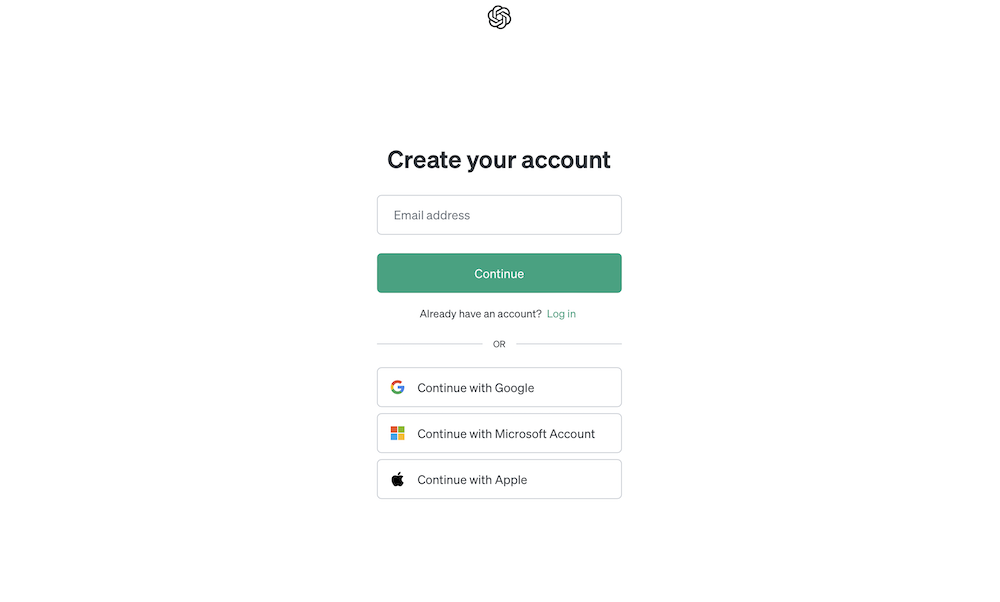
Making Your Account: To use ChatGPT , you need to create an account first on OpenAI. Head to chat.openai.com and click ‘Sign up’ with your email or social accounts like Google or Microsoft. It’s free, but you’ll need to give your phone number for verification.
Next, just sign up by following the prompts to provide the necessary information and you’re IN!

Step 2
Agreeing to Rules: Before you can chat on ChatGPT, there might be some disclaimers to agree to. Take a moment to read and say okay to them before you start chatting to the AI Chatbot.

Step 3
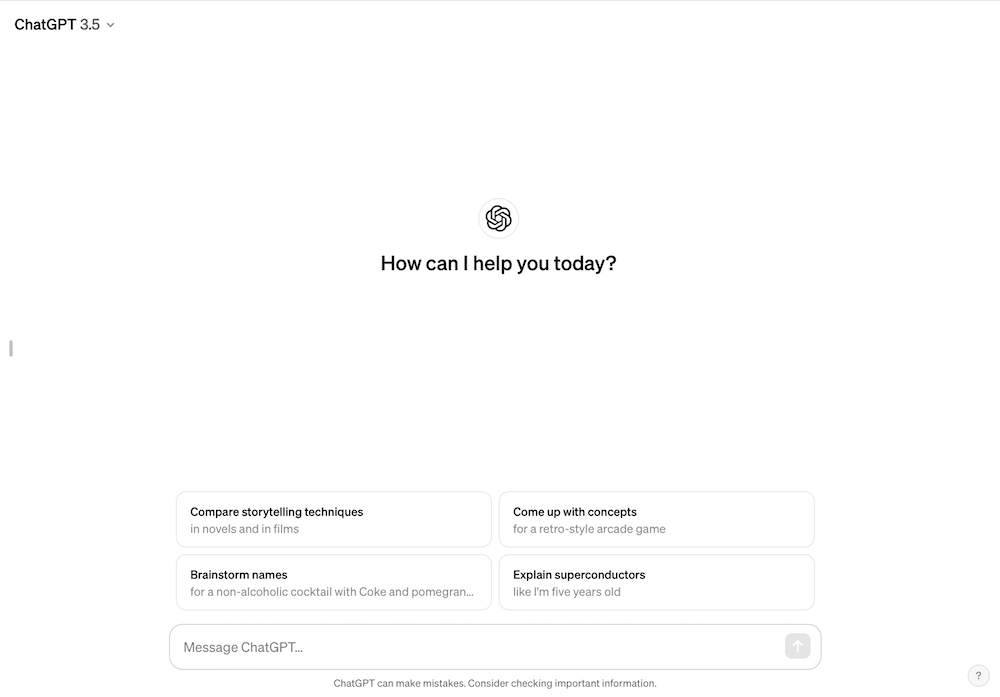
Using the Chat Window: It is now time to familiarise yourself with the AI tool’s window after logging into your OpenAI account on the ChatGPT side of the website. Here’s a summary of what to expect, using the following image as an example
Features
- New Chat & Hide Sidebar Buttons
- Located on the left side, the ‘New Chat’ button initiates a new conversation.
- The ‘Hide Sidebar’ button provides a clutter-free view of the chat.
- Chat History:
- The left sidebar stores past conversations, allowing easy access or deletion.
- Users can customize chat titles, share history, or disable chat history.
- Account:
- Found at the bottom left, clicking your name provides access to account details, settings, help, FAQs, and the option to log out.
- For users without ChatGPT Plus, there’s an Upgrade button for subscription.
- Your Prompts:
- Your questions or prompts, displayed in the center, show your account photo or initials on the left.
- ChatGPT’s Responses:
- ChatGPT’s logo appears on the left when it responds.
- Features like Copy, Thumbs Up, and Thumbs Down allow feedback and text copying.
- Regenerate Response:
- In case of unsatisfactory responses, the ‘Regenerate response’ button prompts ChatGPT to generate a new reply.
- Text Area:
- This section, where you input prompts and questions, is at the bottom of the window.
- ChatGPT Version:
- A disclaimer at the bottom acknowledges ChatGPT’s potential for mistakes and advises verification of important information.
- Note: The display of the ChatGPT version has been discontinued.
Hence, this breakdown aims to provide a clear overview of the ChatGPT interface and its functionalities.
Step 4
Starting Conversations: Now that you know the basics, go ahead and type your questions. ChatGPT will generate text to help you out, there is endless answers and solution given to you in just a few seconds.
Type in any way with GPT’s prompts in the text bar at the bottom of the page and click on the submit button or by enter bar to send your questions to the Chatbot. Thus, the AI chatbot will generate answer and solution to provide you with helpful answers to your queries.

Step 5
Exploring ChatGPT’s Many Uses:
Endless Possibilities:
ChatGPT isn’t just a fancy word; it’s a tool that can help you be creative. Whether you want funny answers or need help with a coding problem, ChatGPT is easy to use and can be a game-changer.
Conclusion:
In the world of AI, ChatGPT is not just a chatbot; it’s a way to interact with technology in a new and exciting way. So, log in, start a conversation, and see how ChatGPT can make your experience with artificial intelligence a lot more interesting.